
Offers
Offers
Offer — is a specific proposal from an affiliate network (CPA): casino, bookmaker, dating site, etc. The offer stores basic parameters (name, countries, revenue, macros) and serves as a "container" for links (Flows) that are already used in campaigns.
The section is available in the side menu: TRACKER → CPA → Offers.
Creating and Editing an Offer
The window opens by clicking the + Offer (green button in the upper right corner) or by the Edit action in the table row. The window is divided into three tabs.
Tab "Main"
Field | Description |
|---|---|
Name | The name of the offer (required). Displayed in tables and when selecting the offer in links/campaigns. |
Active | The activity switch of the offer. An inactive offer is not available for selection in new links. |
Affiliate Network | The CPA network that owns the offer (required). Set during creation and cannot be changed afterwards. |
Tab "Macros and Countries"
Field | Description |
|---|---|
Countries | A list of countries (GEO) for the offer. Multiple selection. |
Country Macros | For each selected country, you can set up to three text values. |
Macros are used in PWA and Push notification texts and are substituted based on the user's country — this allows for universal PWAs and pushes:
{offer.value}— first value{offer.value1}— second value{offer.value2}— third value
Example of setting values by countries:
Country | Value | Value1 | Value2 |
|---|---|---|---|
US | 1000 USD + 225 Free Spins | 1000 USD | US Brand Name |
GB | 100 GBP + 125 Free Spins | 1500 GBP | GB Brand Name |
DE | 800 EUR + 225 Free Spins | 1200 EUR | DE Brand Name |
Tab "Additional"
Base Revenue
Base Revenue — the rate (revenue) that applies to the conversion of this offer.
Next to it is the switch "Use revenue from postback", which controls the source of revenue for accept/redep events:
Position | Behavior |
|---|---|
Enabled (default) | Uses revenue from postback. Base revenue is substituted only as a fallback when the postback returned |
Disabled | Revenue from postback is ignored — the base revenue of the offer is always applied. |
Conversion Limit
A group of settings limits the number of conversions for the offer per day and (optionally) redirects excess traffic to another offer.
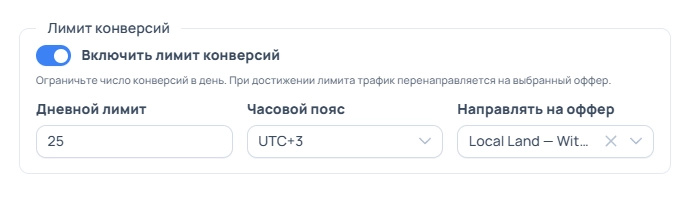
Field | Description |
|---|---|
Enable conversion limit | Enables the limit mechanism for the offer. |
Daily limit | The maximum number of accepts (deposits) per day. |
Time zone | The time zone from which the day is counted and the counter is reset. By default, your time zone is used. |
Redirect to offer | The link (flow) of another offer from the same affiliate network to which traffic will be switched after the limit is reached. Available after the offer is created. |
How it works:
When the limit is enabled, the platform counts accepts for the offer for the current day.
Upon reaching the daily limit, you receive a notification in the bell and in the Telegram bot.
If the "Redirect to offer" field is set — all new traffic is automatically redirected to the selected link until the end of the day.
At the end of the day (according to the selected time zone), the counter resets, and the offer accepts traffic again.
Changes to limit settings are applied immediately: if you disable the limit or change the target offer for an already "capped" offer, the new behavior takes effect immediately, without waiting for the end of the day.
Offers Table
Columns
The offers table shows the name, affiliate network, type, base revenue, countries (with flags), tags, activity status, and a metrics block for the selected period. Clicking on the offer name opens a list of its links (Flows), clicking on the affiliate network filters offers by this CPA.
Column "Conversion Limit"
A separate column with a progress indicator for offers with an enabled limit: shows the number of accepts for today and the daily limit (e.g., 73 / 100) with a fill percentage. When the limit is reached, the value is highlighted in red.
The progress reflects consumption for today in the offer's time zone and does not depend on the date range selected in the table. For offers without a limit, the column displays "—".
If the column is not displayed, enable it through the table column settings (column management icon).
Filters and Search
Above the table, you can find: search by name, filter by status (Active/Inactive), by affiliate network, by type, by countries (multiple selection), and by tags, as well as select a date range and time zone for statistics. The country filter activates if at least one country of the offer matches the selected ones.
Row Actions
In the row action menu, you can find: Edit, Manage Tags, view statistics, and Delete (deactivate the offer). Tags can be assigned to both an individual offer and to multiple selected rows.